Customer
By Administrator on December 20, 2022
IntermediateA customer, who is sometimes known as a client, to whom we issue Offer based on their request.
Every customer needs to be assigned a unique id. Customer name itself can be the id.
To access the Customer list, go to:
Home > Offer > Lists > Customer
Or to Create Customer
Home > Offer > New > New Customer
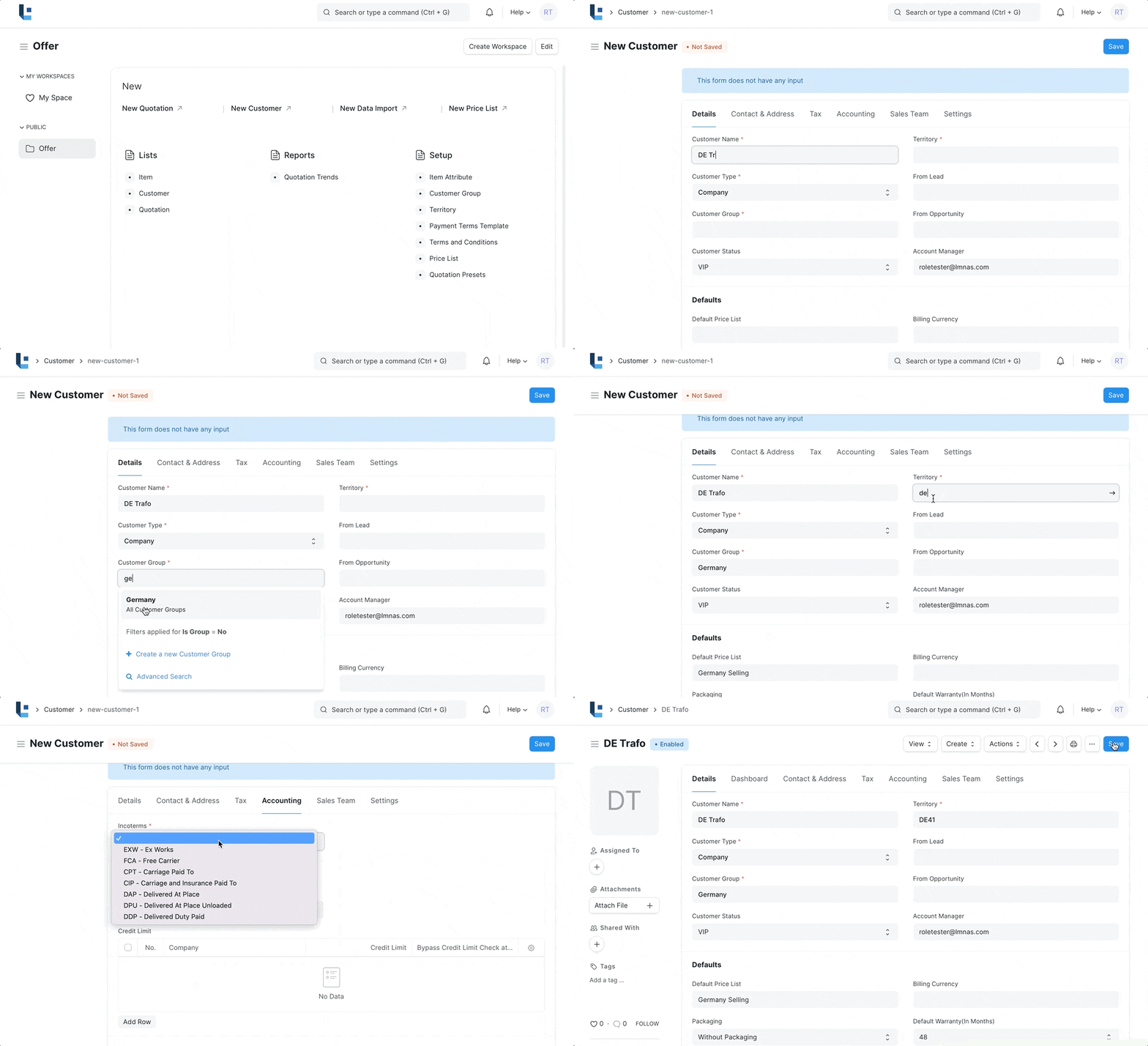
1. How to create a Customer
- Go to the Customer list and click on New or click New Customer.
- Enter Full Name of the customer.
- Select Individual if the customer represents an individual or Company if the customer represents a company in Type field.
- Select a Customer Group. In general Country in which the customer belongs to is the customer group eg Germany
- Select the Territory.
- Select the Customer Status
- *Only in Edit Full Form. Goto Accounts view and select Incoterms from the list of options.
- Additionally you can add customer addresses like billing, shipping and customer contacts in the Address and Contacts tab.
- Save.
You can disallow sales orders and sales invoices against a customer by clicking on 'Disabled'.
Advanced Tip: If the customer represents one of your own companies then check 'Is Internal Customer'.
You can also upload customer details via the Data Import Tool.
2. Features
Note: Customers are separate from Contacts and Addresses. A Customer can have multiple Contacts and Addresses.
2.1 Multiple Contacts and Addresses
Contacts and Addresses are stored separately so that you can attach multiple Contacts or Addresses to the customer.
2.2 Account Manager
You can assign an Account manager who will be closely working with the customer. By default the logged in user will be assigned as Account Manager
2.3 Default Currency and Price List
LENS Core supports Multiple Currency and Price Lists.
You can set the default currency to be used for this customer in Offer by selecting the appropriate currency in Billing Currency.
Similarly, you can set the default price list to be used for this customer in Offer by selecting the appropriate currency in Default Price List.
2.4 Default Warranty and Packaging
You can assign a default warranty and Packaging information right in the customer, so that when an offer is created for this customer this information will be automatically fetched in the offer.
2.5 Payment Terms
You can select the default Payment Terms to be applied in Offer in 'Default Payment Terms Template' field.
2.6 Sales Team and Sales Partner
If you have one or more Sales Person to manage the sales to the customer, you can add them in SALES TEAM section. If multiple sales person are involved you can split the contribution among them. Make sure that the sum of all sales persons contribution equals to 100%.
A Sales Partner is a third party distributor / dealer / commission agent / affiliate / reseller who facilitates your products/services sales, for a commission. If you sell your products/services to the customer through a sales partner you can set it in 'Sales Partner' field and mention the 'Commission Rate' for calculation of commission.
No comments yet. Login to start a new discussion Start a new discussion